IPTV on Huawei Phones Without Google Play Services
·6 min read
You can watch IPTV on a Huawei phone without Google services; the player just comes from AppGallery, or as an APK from a trustworthy source, instead of the Play Store. IPTV players do not need a Google account, so once installed they work like on any other phone.
First, check your phone's system
Huawei phones sold in the UK and Europe run EMUI or a version of HarmonyOS that still runs Android apps, and Huawei has said it will keep Android app support on devices outside China. HarmonyOS NEXT (HarmonyOS 5), which is aimed at the Chinese market, does not run Android apps at all; if you have an imported device on that system, the APK route will not work. You can see your version under Settings > About phone.
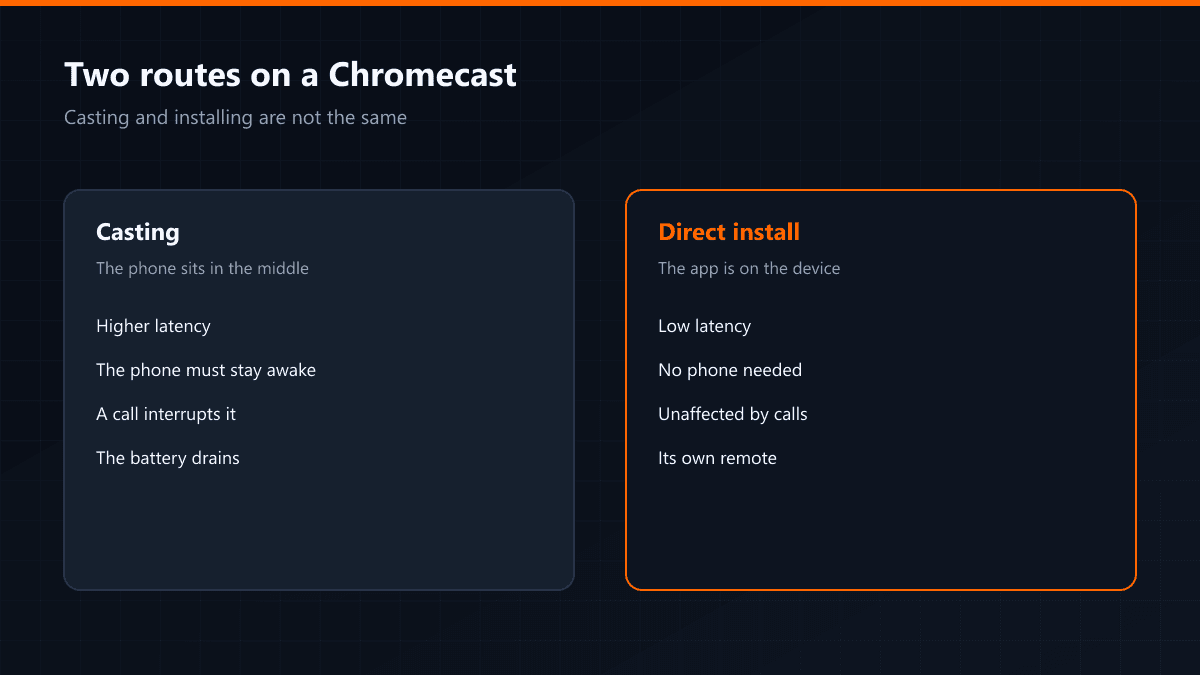
Missing Google services matter for IPTV in two places. First, Chromecast: the Google Cast button depends on Google Play services, so many players cannot send the stream to a TV or do not show the button at all. Second, in-app purchases: if a player sells its paid tier through Google Play, unlocking it on a Huawei is often impossible. Choosing a player that sells its paid tier through AppGallery, or whose free version is enough, solves this from the start.
What is in AppGallery?
AppGallery lists several IPTV players that accept Xtream Codes and M3U. Televizo, for example, publishes a separate AppGallery version. The catalogue varies by country, so search for "IPTV player", "Xtream" and "M3U". Check the developer name, the last update date and the reviews: a player that has not been updated for a long time can misbehave on newer Android versions.
| Route | Security | Updates |
|---|---|---|
| AppGallery | Goes through Huawei's store review | Automatic through the store |
| APK from the developer's own site | Signed by the developer | Manual, by downloading the new APK |
| Random APK sites | No guarantee the file was not modified | Uncertain |
If you need to install an APK
- 01Choose the sourceDownload the APK from the developer's own website. The first download site in search results is often not the developer's.
- 02Check Pure modeOn EMUI and HarmonyOS, Pure mode blocks or warns about apps from outside AppGallery. Read the warning during installation, and allow just this install rather than switching Pure mode off for good.
- 03Look at the permissionsAn IPTV player needs internet and storage access. Do not install a player that asks for contacts, SMS, call logs or accessibility access.
- 04Scan after installingThe phone's own security app (Optimizer) can run a virus scan. Scan the newly installed app once.
- 05Enter your Xtream detailsChoose the Xtream Codes login in the player and type in the server, username and password. The channel list and guide load within seconds.
Do not install modified APKs shared as "Premium unlocked". Their signature is broken and nobody knows what was added — and they run on the same phone as your banking and email apps.
Petal Search, GBox and similar tools
Huawei's Petal Search app can find and download apps that are not in AppGallery from other sites. Handy, but the file still comes from a third-party site, so the checks above still apply. Tools that run Google services in a virtual environment are not needed for IPTV: players do not ask for a Google account.
If the stream keeps stopping
- Battery optimisation: under Settings > Battery, set app launch management for the player to manual; otherwise the app is stopped when the screen turns off.
- Background data: on mobile data, data saver can keep the stream at low speed.
- Casting to the TV: Huawei's wireless projection is based on Miracast, not Chromecast; if your TV does not support Miracast, it will not appear.
How much mobile data does it use?
Data per hour follows the bitrate: multiply the Mbit figure by 0.45 for GB per hour. A 4 Mbit SD stream uses about 1.8 GB an hour, an 8 Mbit HD stream about 3.6 GB. A 90-minute match in HD is 5.4 GB, so a 20 GB monthly allowance can be gone after three matches. On a phone screen the gap between SD and HD is small, so choosing the lower-quality version on mobile data makes sense. Abroad, what streaming costs depends on your network's roaming terms, so check them before a match rather than after.
A quick checklist for choosing a player
- Does it support the Xtream Codes login? M3U works too, but with Xtream the list updates itself.
- When was it last updated? An app untouched for over a year can break on a new system version.
- Ads and in-app purchases: a free player that shows full-screen ads interrupts the match.
- Does it require a Google account? If so, it will stall at the sign-in screen on a Huawei; an IPTV player should not need one.
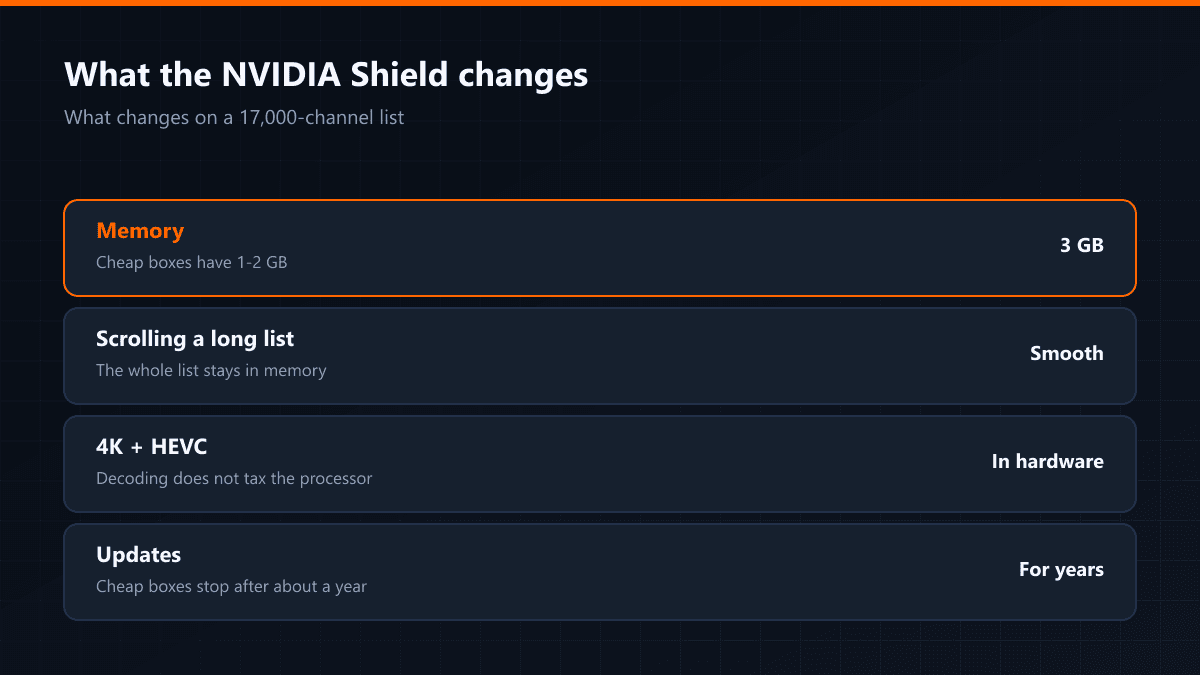
The same route applies to Huawei MatePad tablets: look in AppGallery first, and install the developer's own APK if the player is missing. If you want to watch on the TV as well, installing a player on the TV itself is more reliable than mirroring from the phone, which strains the battery and heats the phone during a long match.