Record IPTV: Player Apps, Storage Maths and Scheduling
·7 min read
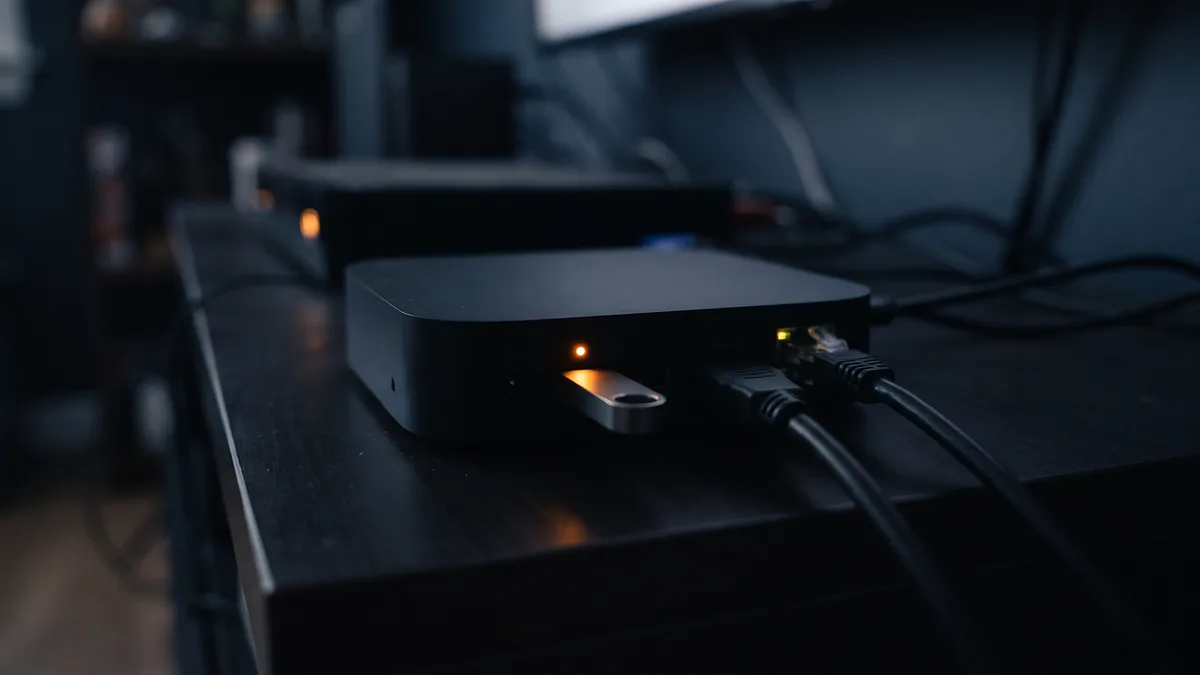
When you record IPTV, the recording is made by your player app, not by the server: the app writes the incoming stream to a file in the device's storage or on a USB stick. So you need a player that supports recording, enough free space and a device that stays on while it records.
Which players can record?
| Player | Recording | Scheduling |
|---|---|---|
| TiviMate (Android TV, Fire TV) | Yes, with Premium | Schedule future programmes from the guide |
| VLC (Windows, Mac) | Records the stream that is playing | No |
| Kodi + IPTV Simple Client | Not on its own | Needs a separate PVR backend |
| IPTV Smarters Pro | Varies by device and version | Check in the app |
TiviMate is the clearest option: pick a future programme in the guide, set a recording, and the app starts and stops it on its own. In VLC, recording is the record button in the advanced controls on Windows, or the Playback menu on a Mac, and it only captures what is playing at that moment.
How much space does a recording take?
File size follows the stream's bitrate: megabits per second × 3,600 seconds ÷ 8 = megabytes per hour. The shortcut is to multiply the Mbit figure by 0.45 to get GB per hour. The figures below are calculations from example bitrates; if a channel's real bitrate differs, the result scales in proportion.
| Stream bitrate | 1 hour | 90-minute match |
|---|---|---|
| 4 Mbit (SD) | 1.8 GB | 2.7 GB |
| 8 Mbit (HD) | 3.6 GB | 5.4 GB |
| 15 Mbit (Full HD) | 6.75 GB | about 10.1 GB |
| 25 Mbit (4K) | 11.25 GB | about 16.9 GB |
TV boxes and sticks often have 8 to 32 GB of internal storage, much of it already taken by the system and apps. If you plan to record regularly, a USB stick or external drive is a must: a 64 GB stick holds about 17 hours of an 8 Mbit stream (64 ÷ 3.6). A Fire TV Stick has no full-size USB port, so it needs an OTG adapter; a box with a USB port is simpler.
On FAT32-formatted sticks, a single file cannot exceed 4 GB; an 8 Mbit stream reaches that in about 70 minutes. If long recordings stop halfway, this is usually why. Format the stick as exFAT, or let Android TV format it from its own storage settings.
Why scheduled recordings get missed
- The device went to sleep: Fire TV and many Android TV boxes sleep after a set time. If you use scheduled recordings, lengthen or disable the sleep timer.
- The guide is shifted: if EPG times are wrong, the recording starts halfway through. Check the guide against the real time before you schedule — remember the clocks change in late March and late October — and add a few minutes of padding at the start and end, which also covers extra time.
- The app was closed: some boxes close background apps to free memory. Avoid launching heavy apps before a recording.
- The drive is full: when the recording folder has no space left, new recordings do not start; delete old ones regularly.
A recording is also a connection
While recording, the app keeps pulling the stream from the server, so a recording uses one simultaneous connection. Record one channel while watching another and two connections are open. On a single-screen plan, either the recording or the channel you are watching cuts out. Some players can share the stream if you watch the channel you are recording, but test that on your own device before relying on it.
Do you still need to record if you have catch-up?
| Catch-up | Recording | |
|---|---|---|
| Where it lives | On the provider's server | On your own device |
| How long | A few days, depending on the channel | Until you delete it |
| Which channels | Only those with catch-up | Any channel that plays |
| Preparation | None | Must be set in advance |
| Storage needed | None | A few GB per hour |
If the channel has catch-up and you will watch within a few days, recording is unnecessary: the archive already sits on the server. Recording makes sense on channels without catch-up, when you want to keep a programme long term, or when you will watch somewhere without internet — on a flight, for example.
Setting a recording in TiviMate
- 01Choose the recording folderIn the recording section of Settings, choose where recordings are saved. If a USB stick is plugged in, pick it; internal storage fills up after a few matches.
- 02Find the programme in the guideHighlight a future programme in the guide, confirm, and choose record from the options. The same screen lets you set a series recording for every episode.
- 03Add padding at both endsMatches overrun and broadcasts start a few minutes late. In the recording settings, set a few minutes before the start and after the end.
- 04Leave the box onYou can turn the TV off, but keep the box powered and the sleep timer longer than the recording.
Quality and watching recordings elsewhere
Players write the stream to a file as it arrives, without re-encoding, so a recording's quality is exactly the stream's quality. If the picture stuttered during recording, the stutter is in the file too. Recordings are usually TS files; plug the USB stick into a computer and open them in VLC, or copy them to another device.
Recordings are for your own viewing. Uploading or passing a recorded broadcast on to others conflicts with the broadcaster's rights.