TiviMate Premium: How to Buy It and Add Your Devices
·6 min read
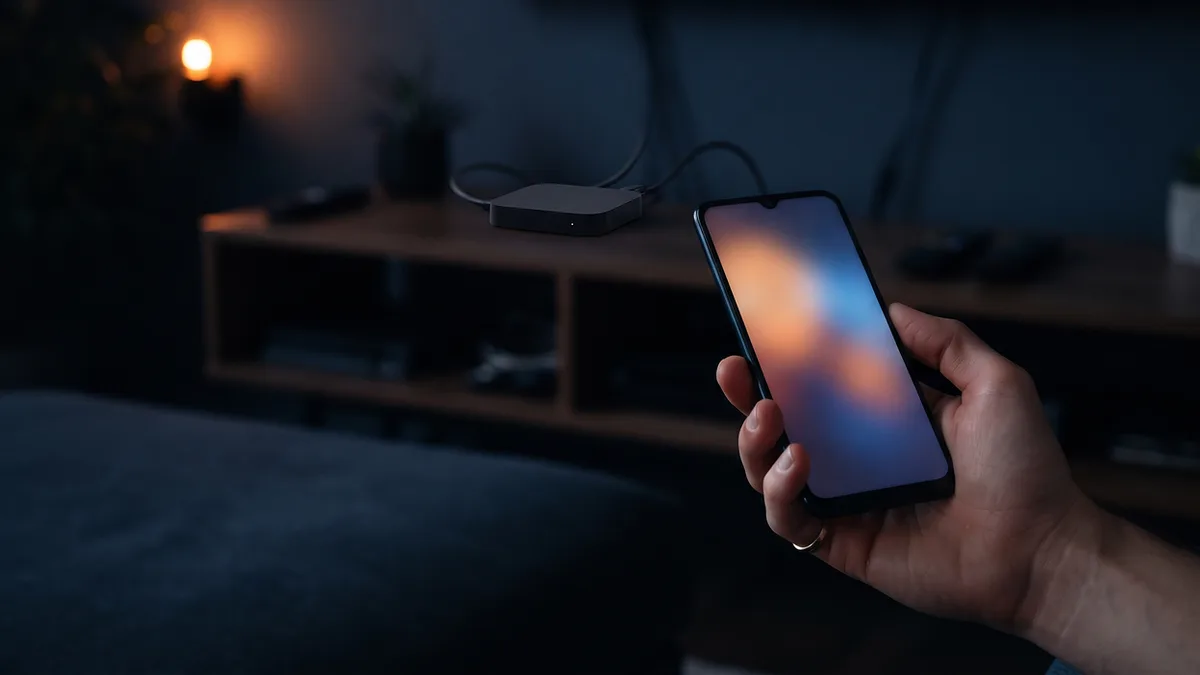
TiviMate Premium is not bought inside the TV app but in the TiviMate Companion app on an Android phone. Sign in to TiviMate on the TV with the same account and Premium switches on; one account covers up to five devices. This guide only covers buying and activating Premium — installing the app and adding a playlist are in our separate setup guide.
What does Premium unlock?
The free version is enough to watch one playlist. Premium adds features such as multiple playlists, recording, multiview, parental control and custom channel sorting. If you need none of these, you do not have to buy it — channels play at exactly the same quality in the free version.
Yearly or lifetime?
| Yearly | Lifetime | |
|---|---|---|
| Payment | Subscription that renews every year | One-off payment |
| Device limit | Five devices | Five devices |
| Cancelling | Through Google Play subscriptions | Nothing to cancel |
| Makes sense if | You want to try the app first | You know you will use it for years |
Prices vary by country and promotion, so we do not quote figures here; the purchase screen in the Companion app shows the current price in pounds or euros. Payment runs through Google Play, so the receipt lands in your Google account.
Buying through the Companion app
- 01Install the Companion app on your phoneOn an Android phone, open Google Play and search for "TiviMate Companion". Check the developer name matches the TiviMate app; look-alike apps are listed too.
- 02Create an account or sign inCompanion asks you to sign in with a TiviMate account. Premium is tied to that account, not to the TV — when you change devices, signing in again is all it takes.
- 03Choose yearly or lifetimeTwo options appear on the purchase screen. Google Play confirms the payment and the account status changes to Premium within seconds.
- 04Sign in on the TV with the same accountIn TiviMate's Settings, open the Premium or account section and sign in with the account you used in Companion. Once active, recording and multiple playlists appear in the menus.
Fire TV has no Google Play, and the purchase screen does not work there. The only route is to pay in Companion on an Android phone and then sign in to TiviMate on the Fire TV Stick with the same account. No Android phone at home? A family member's phone will do — as long as the account is yours, so is the purchase. iPhone users face the same issue, because Companion is an Android app.
The five-device limit and swapping devices
One Premium account can be active on five devices. To sign in on a sixth, you first remove one. You do that from the device list in the Companion app: delete the old TV box you no longer use or a Fire TV you have reset, then use the free slot on the new device.
The classic mistake is factory-resetting a device and setting it up again: the old entry stays in the list, so the same box now takes two slots. Check the list before or after a reset.
Two distinctions worth knowing
- TiviMate Premium is a player licence, not a TV subscription. The channels come from your IPTV plan; Premium does not add channels or extend your plan.
- The five-device limit is TiviMate's own. How many screens your IPTV plan can open at the same time is a separate limit set by the plan; Premium on five devices does not mean five screens at once.
- Modified APKs shared as "Premium unlocked" put your account and device at risk: they come with a broken signature and nobody knows what was added.
Premium not showing?
- Check that the TV is signed in with the same account as Companion — two different email addresses is the most common cause.
- If Companion still shows the free tier, check Google Play's order history to confirm the payment went through.
- Close and reopen the app; the account status is read from the server at launch.
- If you cannot find the app in the store, check the developer's own announcements before downloading from an unofficial site.
Cancelling or renewing the yearly plan
The yearly option is a Google Play subscription and renews automatically at the end of the term. To cancel, go to Google Play > Profile > Payments & subscriptions > Subscriptions on your phone and pick TiviMate. Premium does not switch off immediately; it stays active until the end of the period you paid for. After that the app returns to the free tier: your playlists are kept, but the second and further playlists and features like recording are locked.
To move from yearly to lifetime, first turn off the yearly renewal, then buy the lifetime option. Otherwise both payments keep running side by side.
The purchase is recorded in your Google Play order history. Change phones or uninstall Companion and Premium does not disappear; install Companion on the new phone and sign in with the same account. Note the account's email and password somewhere safe: the account, not the device, is what brings Premium back.
Sharing five slots in one household
A typical home uses three slots — the living-room TV, a stick in the bedroom and a spare box — and keeps two free. Holding those back for a new device or a reset is sensible. Giving Premium to someone outside the home means sharing the account password: they can see your device list and remove your devices from it.